Window Transaction Entry
Throughout the year users handle many types of interest transactions for accounts. The most common example of this is the payment of interest for a US savings bond. Transactions such as these are commonly called window transactions. The SHAZAM Core system requires each person receiving interest to have a CIS record, because that is the only place where certain required information for year end is maintained. This information includes the taxpayer identification number, the legal name, address, and name control fields.
If a non-customer is involved in a window transaction, a customer record must be set up in the system, and this can be done from this program. If an existing customer has a window transaction, users can select the customer from a list and provide the interest information.
When entering window transactions, users have the option to indicate whether a 1099 - INT form should be printed after year end with the other 1099 - INT forms. If users complete a 1099 - INT form to give to the customer when the transaction occurs, it may not be necessary to send another copy. On the other hand, even if users do complete a notice at the time of the transaction, it may be necessary to send another one as a reminder for the customer.
Users can specify the amount of interest paid to the customer or the amount of the payment withheld for a federal or state agency.
Any transaction entered using the Window Transaction Entry is reflecting the current calendar year. Records not entered prior to 12/31 would have to be entered in the tax file directly using one of the following options: Customer Inquiry/Account Inquiry/Tax File Inquiry.
Tax Information
Window Transactions are entered in Compass XD in the Tax Information window.
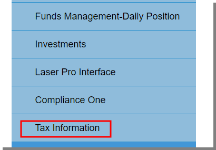
From the main user menu, select Tax Information.
ADD AN ENTRY
To add a new Window Transaction Entry, select the Window Transaction tab.
Existing customer
User may add existing customers within the Window Transactions tab.

Select the Add button.
The Window Transaction Add Form will display.

Enter the CIS#, SSN/TIN, or Short Name of the desired customer and select Submit.
The Customer Search window will display the customer information. Select the customer, then select Add.
The Window Transaction Form will display.
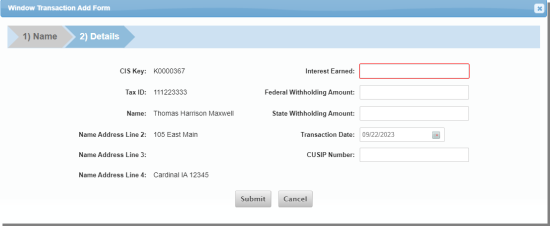
Complete the following fields:
| Interest Earned | Enter the amount of interest earned. |
| Federal Withholding Amount | Enter the federal withholding amount. |
|
State Withholding Amount |
Enter the state withholding amount. |
|
Transaction Date |
Enter the date of the transaction. |
|
CUSIP Number |
Enter the Committee on Uniform Security Identification Procedures number. If the CUSIP number is not known or available, enter zero. |
New customer
New customers may be added directly from the Window Transaction window.
If the user is unable to locate a customer from within the Customer Search window, select the Add button to enter a new customer.
NOTE: Any field required by the CIS Required Information parameters will apply here also.
The Customer Add Form will display.
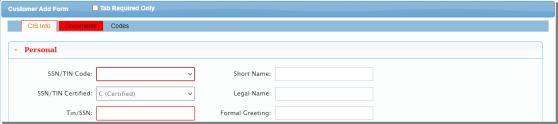
CIS Info
The CIS Info tab contains the initial information for a new customer setup.
The Personal accordion will be expanded.
Complete the following fields:
| SSN/TIN Code | Select the appropriate SSN/TIN code option from the drop-down menu. |
| SSN/TIN Certified | Select the appropriate SSN/TIN certified option from the drop-down menu. |
|
TIN/SSN |
Enter the TIN/SSN for the customer. |
|
Foreign Tax ID |
If the customer has a foreign Tax ID number, enter it in the field. |
| Mother's Maiden Name |
(Optional) This field allows users to enter the customer's mother's maiden name for identification purposes. |
|
Drivers License # |
Enter drivers license number for the customer. |
|
First Name |
Enter the first name of the customer. |
|
Middle Name |
(Optional) Enter the middle name of the customer. |
|
Last Name |
Enter the last name of the customer. |
|
Short Name |
Enter the customer short name. The customer short name is used for inquiry purposes. Guidelines for the short name may be specific at each bank. |
|
Legal Name |
Enter the legal name of the customer. The legal name is the way the customer's name would be listed on a social security card or any document that reports to the IRS. |
|
Formal Greeting |
This field can be used as a salutation when addressing the customer formally in a letter. |
|
Informal Greeting |
This field can be used as a salutation when addressing your customer informally in a letter. |
|
IRS NAME Control |
This is the field the IRS uses for its own purposes. It generally consists of the first four characters of the customer's last name. This field's default value is based on the short name entered in the previous field. |
|
Birth Date |
Enter the date of birth for the customer. |
|
DL State |
Enter the state that issued the license. |
|
Expire Date |
Enter the driver's license expiration date for the customer. |
|
Issue Date |
Enter the driver's license issue date for the customer. |
Expand the Contacts accordion.

Complete the following fields:
| Foreign Address | Select this option if the address is not a standard, U.S. address. Review the Foreign Address section for more information regarding foreign address. |
| Name | Enter the customer name. |
|
Address Line 1 |
This field is for the first line of the customer's mailing address. |
|
Address Line 2 |
This field is for the second line of the customer's mailing address, if needed. |
| City |
Enter the city name. |
|
State |
Select the appropriate state from the drop-down menu. |
|
Zip Code |
Enter the appropriate zip code. |
|
Bar Code |
This field is used to enter the zip bar code for the customer. If the bar code is not utilized, this field can be left blank. |
|
Country |
This field is used to enter the country. If the country is not needed for standard U.S. mail delivery, this field can be left blank. |
|
Home Phone |
Enter the home phone number for the customer. |
|
Work Phone/Ext |
Ente the work phone number and extention for the customer. |
|
Mobile Phone |
Enter the mobile phone number for the customer. |
|
Pager Number |
Enter the pager number for the customer. |
|
Home Fax |
Enter the home fax number for the customer. |
|
Personal Email |
Enter the personal email address for the customer. |
|
Personal Email - Use |
Select this option if the personal email address listed can be used for communication purposes. |
|
Business Email |
Enter the business email address for the customer. |
|
Business Email - Use |
Select this option if the business email address listed can be used for communication purposes. |
Expand the Employer accordion.
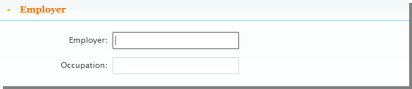
Complete the following fields:
| Employer | Enter the employer of the customer. |
| Occupation | Enter the occupation of the customer. |
Expand the Financial Institution accordion.

Complete the following fields:
| Branch | Select the appropriate branch option from the drop-down menu. |
| Primary Officer | Select the appropriate primary officer option from the drop-down menu. |
|
Red Flag Code |
Select the appropriate red flag code option from the drop-down menu. |
|
VIP Customer |
Select the correct VIP customer option from the drop-down menu. |
Documents
Users may review several types of documents when entering a new Compass XD customer. Some examples would be credit applications, agreement to provide insurance, stop payment orders, etc.
To enter a specific document, select the Documents tab.
Expand the Documents 1 accordion.
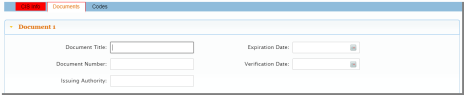
The following fields are available:
| Document Title | Enter the document title. |
| Document Number | Enter the document number, if applicable. |
|
Issuing Authoriy |
Enter the issuing authority of the document. |
|
Expiration Date |
Enter the expiration date of the document. |
|
Verification Date |
Enter the verification date of the document. |
Expand the Documents 2 accordion, the fields available are the same as above.
Expand the Verify accordion.

Complete the following fields:
| Customer ID Properly | Select the correct option from the drop-down menu. |
| Verified By | Enter the name of the associate reviewing the customer identification. |
|
Verified By-And |
Enter the name of the second associated reviewing the customer identification. |
Codes
Select the Codes tab.
The Additional Address Information accordion will expand.
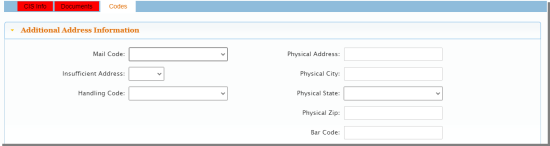
Complete the following fields:
NOTE: If the physical address is the same as the mailing address, the fields can be left blank based on the bank's policy and procedure.
| Mail Code | Select the appropriate mail code from the drop-down menu. |
| Insufficient Address | Select the appropriate option. |
|
Handling Code |
Select the appropriate special handling code from the drop-down menu. |
|
Physical Address |
Enter the physical address of the customer. |
|
Physical City |
Enter the physical city of the customer. |
|
Physical State |
Enter the physical state of the customer. |
|
Physical Zip |
Enter the physical zip code of the customer |
|
Bar Code |
Enter the bar code. |
Expand the BSA Information accordion.

Complete the following fields:
| Opt Out of Privacy Rpt | Select the appropriate response for opting out of privacy reporting. |
| Non-customer | Select the appropriate response. |
|
BSA/AML Risk Code |
Select the appropriate BSA/AML risk code from the drop-down menu. |
|
BSA/AML Exempt Code |
Select the appropriate BSA/AML exempt code from the drop-down menu. |
Expand the Miscellaneous accordion.

Complete the following fields:
| Classification Code | Select the appropriate classification code for the customer from the drop-down menu. |
| Insider Code | Select the appropriate insider code option from the drop-down menu. |
|
Retain Period |
Enter the number of years to Retain the customer CIS key after all account relationships have been terminated. Entering a zero will result in the CIS records being deleted the next time the records are purged by the bank. |
|
Federal W/H Code |
Select the appropriate Federal Withholding Code from the menu drop-down. |
|
State W/H Code |
Select the appropriate State Withholding Code from the menu drop-down. |
|
Decreased Code |
Select the appropriate response. |
|
Date of Death |
Enter the date of death when applicable. |
|
Customer ID |
Enter the Customer ID to be used when the customer is calling for information. |
|
Statement Cycle |
Select the appropriate statement cycle. |
|
Referred by |
Enter the name of the referrer if applicable. |
|
Combined CIS Key |
If the customer has another CIS key at more than one bank or system, enter the combined CIS key. |
|
Approved Lending Limit |
Enter the approved lending limit for the customer. |
|
Gender |
Enter the customer gender. |
|
NAICS Code |
Select the appropriate NAICS from the drop-down menu. |
Expand the Tracking Information accordion.

Complete the following fields:
| FIPS State Code | Select the appropriate FIPS state code from the drop-down menu. |
| FIPS Country Code | Select the appropriate FIPS country code from the drop-down menu. |
|
SMSA Code |
Enter the SMSA Code applicable to the customer. |
|
Industry Code |
Select the appropriate industry code from the drop-down menu. |
|
Census Tract |
Enter the census tract applicable to the customer. |
Expand the W-8Ben accordion.
NOTE: W-8Bens are only valid if the TIN code is O (Non-resident Alien).
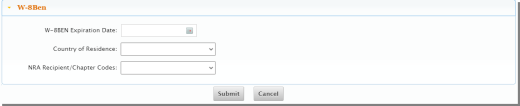
The following fields are available:
| W-8BEN Expiration Date | Enter the date the W-8Ben expires. |
| Country Residence | Select the customer's country of residence from the drop-down menu. |
|
Recipient Code |
Select the appropriate recipient code from the drop-down menu. |
NOTE: Once users have selected the Submit option, the Window Transaction Add Form will display for users to enter the correct interest information.
Select Submit to save the changes.
SEARCH AN ENTRY
Users may search for existing customers whose interest payments have already been added within the Window Transaction window.
To search for an existing customer, enter the customer name or account number in the Search window.
The customer entries will display in the Window Transaction window.
EDIT AN ENTRY
Users may edit existing entries within the Window Transactions tab.
To edit an existing entry, select the Edit icon.
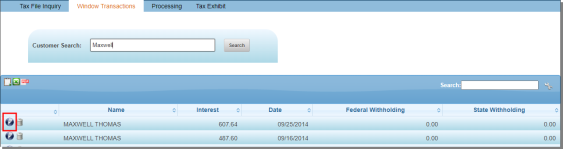
The Window Transaction Edit form will display. Make any changes necessary and select Submit to save the changes.
DELETE AN ENTRY
Compass XD users may delete a window transaction from within the Window Transaction tab.
To delete an entry, select the Delete icon.

The Delete window will display.
Press Delete to confirm.